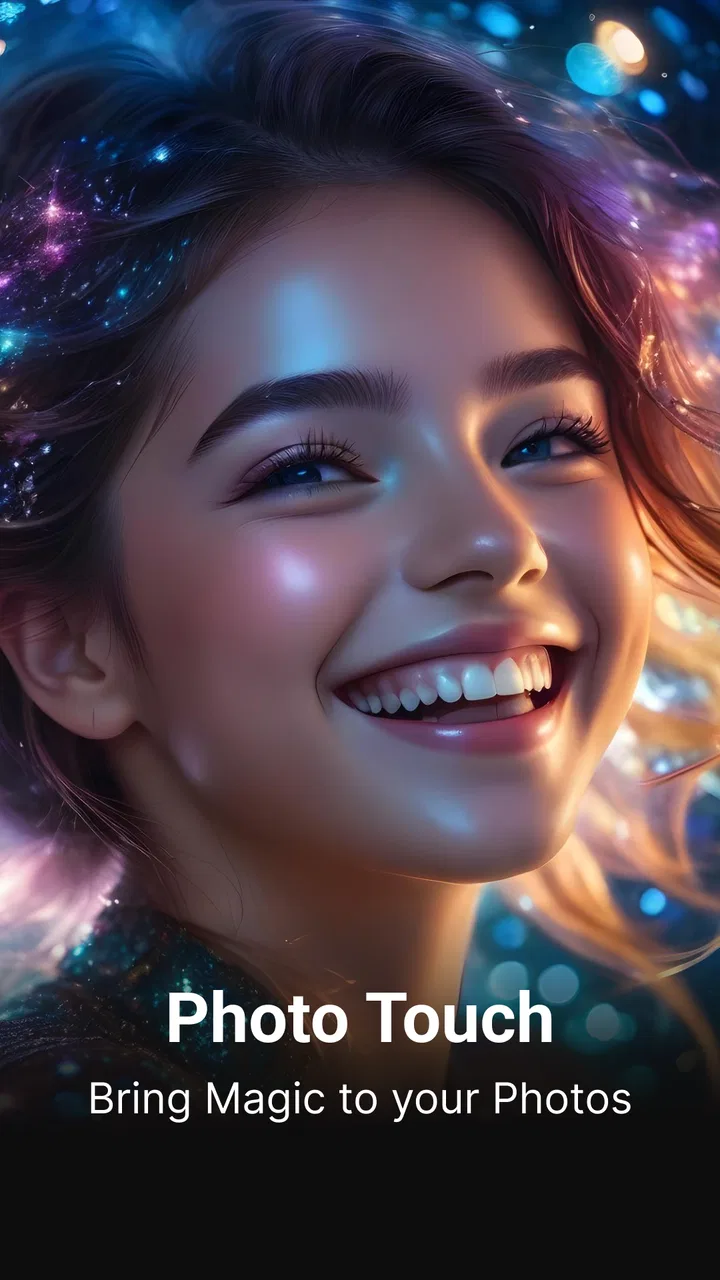
Photo App - AI Photo Enhancer
- 4.5
- Rating
- 10.00M
- Installs
- Free
- Price

 Analysis by App-foxy
Old photos rarely need a dramatic makeover. More often, they need a little help: a face softened by blur, a scanned print that looks dull, or a picture whose details disappeared when it was saved and shared too many times. Photo App - AI Photo Enhancer is built around that everyday problem. I found its main appeal in the way it tries to recover a cleaner, sharper-looking image without asking me to learn a full photo-editing workflow.
This is a free Art & Design app from HyperSoft AI - Apps Lab, aimed at people who want an accessible AI photo enhancer rather than a traditional editing suite. It is rated for Everyone 10+, runs on Android 7.0 and later, and has reached over 10 million installs. Its average rating is 4.5 from around 80 thousand ratings, which suggests that the simple promise of improving imperfect pictures connects with a large audience.
What the enhancement actually changes
The central capability is restoration and sharpening. In practical terms, the app is most useful when a photo is recognizable but lacks clarity. That might be an old family image, a low-quality portrait, or a picture that became soft after compression. Instead of manually adjusting several sliders, I can give the app the image and let its automated processing attempt to rebuild a more defined result.
You May Also Like

 Pandora - Music & Podcasts
Pandora’s Music Is Easy to Start, but Harder to Recover
Pandora’s strength is its low-effort path from a seed to a station. Its weak spot is how much confidence it asks you to place in connection, setup, and quiet recovery.

 8 Ball Pool
 Is Built on Rivalries, Rematches, and Routine
A close look at the rivalries, rematches, shared routines, and unanswered safety questions that turn a quick pool match into a persistent mobile community.

 Samsung Music
’s Quiet Strength Is Playing What You Already Own
Its reach comes less from spectacle than from dependable access to a personal library. That simplicity is both the app’s strongest retention engine and its ceiling.

 AccuWeather: Weather Radar
AccuWeather Review: A Quick, Clear Forecast for Everyday Decisions
For everyday plans, the best forecast is the one you can understand quickly. AccuWeather makes rain timing, radar, and local conditions easy to act on, with a few trade-offs.

 Hill Climb Racing
Why Hill Climb Racing Still Turns Crashes Into One More Run
A tiny car, a bumpy hill and one more upgrade: Hill Climb Racing keeps resurfacing because its simple chaos makes every near-miss feel personal.

 AliExpress - Shopping App
AliExpress Makes Global Shopping Feel Personal, but Shoppers Bear the Risk
AliExpress turns a global marketplace into a pocket-sized discovery engine. Its reach is useful, its shopping loop compelling, and its trade-offs easy to miss.
More From Our News Desk
View All News


The important distinction is that this is not the same as recovering every original detail. When information has been lost through blur, poor focus, or a small source image, no app can truly retrieve the exact pixels that were never captured. What an AI tool can do is infer likely edges, facial structure, and texture. The result can look more convincing at a glance, but it may also contain guessed detail. I treat the output as an enhancement, not as documentary proof of what the original image contained.
That distinction matters especially with faces. A vague face can become easier to recognize after processing, but the app may also make skin, hair, or facial contours look more polished than they really were. For a sentimental photo, that can be a welcome improvement. For evidence, archival work, or an image where accuracy matters more than appearance, I would keep the original beside the enhanced copy and avoid treating the processed version as authoritative.
The strongest use is making a meaningful but imperfect photo easier to enjoy. The tool has a clear purpose: improve visual clarity quickly. It is not trying to replace a drawing application, a detailed retouching editor, or a professional restoration workstation. That focused approach is why it feels approachable, but it also sets a limit on what I expect from it.
How I would use it on an old family picture
My preferred workflow starts with the best source available. If I have several versions of the same picture, I choose the largest and least compressed file rather than the one copied through a messaging app. This gives the enhancer more useful material to work with. I then compare the original and the processed image at the same viewing size instead of judging only by zooming in, because excessive magnification can make generated texture look more impressive than it appears in normal use.
For a faded printed photograph, I would first make sure the scan or camera capture is reasonably straight and evenly lit. The enhancement stage should not be expected to fix every problem at once. A crooked capture, strong glare, and heavy blur can compete with the app's main job. Preparing the source carefully is a small step, but it often makes the final result feel more natural.
I also recommend keeping two files: the untouched original and the enhanced version. This is especially useful when preparing a picture for a family album or sharing it with relatives. If the AI interpretation feels too strong, I can return to the source instead of losing the reference. This simple habit is more valuable than repeatedly processing the same image and hoping each attempt will become more faithful.
Another practical tip is to inspect important areas separately. I look at eyes, hair, text, and patterned clothing because these reveal different kinds of errors. A face may look clearer while small lettering remains unreliable. A shirt may gain attractive texture but also show invented lines. Checking these areas helps me decide whether the result is genuinely useful or merely more dramatic.
A realistic everyday scenario
Imagine finding a small photograph of a grandparent in an old box before a family gathering. The picture is emotionally important, but the face is soft and the print has lost some definition. I would use the app to create a cleaner version for a phone slideshow or a private family chat, then compare it with the original before sharing. In that situation, the app earns its place because the goal is not museum-grade restoration; it is making a treasured image easier for several people to see.
The same workflow can help with a childhood photo that is too small for a modern screen. The enhanced copy may look more comfortable in a digital album, even if it should not be enlarged endlessly. I would still avoid promising that it can turn a tiny, badly damaged image into a truly high-resolution portrait. Its value is in improving presentation, not rewriting the history of the photograph.
Where it fits beside ordinary photo editors
Traditional editors give me control. I can adjust sharpness, contrast, highlights, shadows, color, and noise reduction one step at a time. That is better when I already know what is wrong and want a predictable correction. Photo App - AI Photo Enhancer is more convenient when I cannot easily identify the right combination of adjustments or simply do not want to spend time learning them.
Compared with a manual editor, the trade-off is control versus speed. A slider-based application may preserve a more natural look because I decide how far to push every change. This AI-focused app is more attractive when the source is visibly soft and I want a quick attempt at recovery. I would choose the manual route for a carefully prepared print, a professional portfolio, or a photo that needs precise color work. I would choose this app for a personal image where a fast, noticeable improvement matters more than absolute control.
It also occupies a different space from a full creative design app. Design tools are useful for layouts, text, collages, and layered compositions. They can be unnecessarily complicated if all I want is to make one old picture clearer. The focused workflow here reduces that friction. On the other hand, anyone expecting extensive creative editing may find the experience too narrow, because enhancement is the reason to open it in the first place.
What to expect from the free model
The app is free to download and use, with in-app purchases ranging from $0.99 to $19.99 per item. That makes it easy to try before deciding whether its results justify spending money. I would begin with a few representative images rather than assuming every photo will benefit equally. A clear portrait, a compressed social-media image, and a faded scan can produce very different impressions of the same tool.
Because the purchase range is broad, I would pay attention to the exact option shown before confirming anything. The practical question is not simply whether the app is free, but which part of the workflow is available without payment and whether that is enough for my needs. Someone restoring a single family photo may be satisfied after testing it. Someone planning to process a large personal archive should first decide whether the repeated cost fits that project.
The current version is 1.0.9.7. I would keep the app updated through the normal platform process, particularly when working with personal photographs, because image tools can change their processing behavior over time. I also prefer reviewing the result before deleting or replacing anything. A new version should not change the basic rule of maintaining an original copy.
The trade-offs I noticed in the concept
The biggest limitation is the difference between visual sharpness and genuine detail. An enhanced image can look more defined because edges are stronger and surfaces appear cleaner. That does not guarantee that every added feature belonged to the source. This is not a flaw unique to this app; it is the central compromise of AI restoration. The more damaged the original, the more cautiously I judge the result.
Faces deserve extra attention because viewers are very sensitive to small changes in identity. A result can be attractive while subtly changing expression or proportions. For a casual profile picture, that may be acceptable. For a family archive, I would use the enhancement as a viewing copy and preserve the original as the historical record.
Text is another difficult case. If a photograph contains a sign, document, label, or handwritten note, I would not assume that a sharper-looking version is easier to read accurately. Generated letter shapes can look plausible without being correct. If the purpose is reading information, a dedicated scanning or optical-character-recognition workflow may be a better choice than relying on an artistic enhancement.
There is also a creative trade-off. Some people like old photos because of their softness, grain, and imperfections. Processing can make them look cleaner but less authentic. I would avoid applying the result automatically to an entire album. A selective approach works better: enhance images that are genuinely difficult to view, while leaving naturally soft or atmospheric pictures alone.
Small workflow choices that improve the result
I get more useful comparisons when I process one image at a time and name the copies clearly, such as “original” and “enhanced.” This prevents confusion when several versions look similar in a gallery. It also makes sharing safer, since I can tell relatives which file has been processed rather than presenting an AI interpretation as the untouched photograph.
For portraits, I inspect the image at normal phone size first. If it looks natural there, the enhancement is probably serving its everyday purpose. If it only seems impressive when enlarged dramatically, I become more cautious. At high zoom, artificial texture and overly crisp edges can distract from the fact that the picture may still look unusual in ordinary viewing.
I would also avoid repeated enhancement cycles. Processing an already processed image can exaggerate the same invented edges and gradually move the result farther from the source. If I want to experiment, I start again from the original each time. That gives me a fair comparison and protects the image from an unnecessary chain of alterations.
Finally, I use the app selectively rather than treating it as a universal repair button. A dark image may need exposure correction first, a color cast may call for white-balance adjustment, and a badly cropped picture may need reframing. Enhancement can support those jobs, but it should not be expected to replace them. This is one reason a traditional editor can still be the better companion for more involved projects.
Who will gain the most from it
I think the app is a good match for people with old phone photos, scanned family pictures, casual portraits, and compressed images that are still worth saving. It is especially appealing if manual editing feels tedious or confusing. The automated approach lets a beginner make a meaningful comparison quickly, and the free entry point lowers the risk of trying it on a few nonessential copies first.
It can also suit someone preparing a simple digital memory collection. I would use it to improve selected images before placing them in a phone album or sharing them privately, while keeping the originals stored separately. The app becomes more valuable when the emotional importance of a picture is high but the technical quality is modest.
I would recommend skipping it if the main goal is professional retouching, exact archival restoration, reliable document recovery, or detailed graphic design. In those cases, a tool with manual controls, layer support, color management, or specialized scanning features is likely a better investment. The same applies if I want to control every pixel and dislike automated interpretation.
The age rating of Everyone 10+ makes the app broadly approachable, but that does not remove the need for sensible photo handling. I would be thoughtful about which personal images I choose to process and share, particularly when a picture includes other people. The app is easiest to enjoy when I treat it as a practical image-improvement tool rather than an all-purpose solution for every visual problem.
My recommendation after using its main strength
Photo App - AI Photo Enhancer succeeds when I give it a realistic job: make a meaningful, imperfect image look clearer and more presentable with minimal effort. Its focus on restoring and sharpening old or blurry photos is more useful than a long menu of unrelated features would be for this particular task. I like that I can approach it as a quick first attempt before deciding whether a more involved editor is necessary.
My recommendation comes with one condition: judge the result for naturalness, not just impact. Keep the original, inspect faces and text carefully, and avoid repeated processing. If the enhanced copy looks better at normal viewing size and serves the reason I opened the app, it has done its job. If accuracy, creative control, or professional output matters more, I would move to a specialized alternative.
With a 4.5 average and over 10 million installs, it is clearly a popular choice in the mobile photo-improvement space. For me, its appeal is not that it can perform miracles, but that it makes a formerly frustrating task approachable. The developer, HyperSoft AI - Apps Lab, has positioned it as a focused solution for everyday restoration, and that focus is exactly why I would suggest trying it for a few carefully chosen photos before committing to a larger project.
FAQs for Photo App - AI Photo Enhancer
01What features does the Photo App - AI Photo Enhancer offer?
The Photo App - AI Photo Enhancer is packed with features designed to improve your photos effortlessly. It includes AI-powered tools for sharpening images, enhancing colors, removing noise, and correcting exposure. Additionally, it offers tools for retouching portraits, including skin smoothing and blemish removal. The app supports a variety of file formats and integrates with cloud storage for easy access.
02Is the Photo App - AI Photo Enhancer user-friendly for beginners?
Yes, the app is designed with an intuitive interface that is perfect for beginners. It offers step-by-step guides and tutorials to help new users navigate the features. The AI technology automates many processes, allowing users to enhance photos with just a few taps, making it accessible even for those with no prior photo editing experience.
03Are there any in-app purchases or subscriptions required?
While the Photo App - AI Photo Enhancer is free to download, it does offer in-app purchases and subscription options. These include advanced editing tools, premium filters, and ad-free usage. A subscription may provide additional cloud storage and access to professional-level features, which are ideal for users who frequently edit photos and require more robust tools.
04Does the app maintain the original quality of images after editing?
The app is designed to maintain the highest possible quality of images after editing. It uses advanced AI algorithms to ensure that enhancements do not compromise the integrity of the original image. Users can also choose the output quality settings to balance between file size and image fidelity, ensuring optimal results for their needs.
05Can the app be used offline, or does it require an internet connection?
The core features of the Photo App - AI Photo Enhancer can be used offline, allowing you to edit photos without an internet connection. However, some features, such as cloud storage access, downloading additional filters, and certain AI enhancements, may require an internet connection to function. It’s recommended to have occasional internet access to fully utilize all app features.
Pros
- Easy-to-use interface for quick edits.
- AI enhancements improve photo quality.
- Wide range of filters and effects.
- Batch processing saves time.
- Supports high-resolution exports.
Cons
- Limited free features without subscription.
- Occasional AI misinterpretations.
- Requires internet for some features.
- Ads can be intrusive in free version.
- No RAW file support.

Photo App - AI Photo Enhancer
Gallery